
Error Messages:
I’m trying to log in but I’m receiving “Invalid Email Format”:
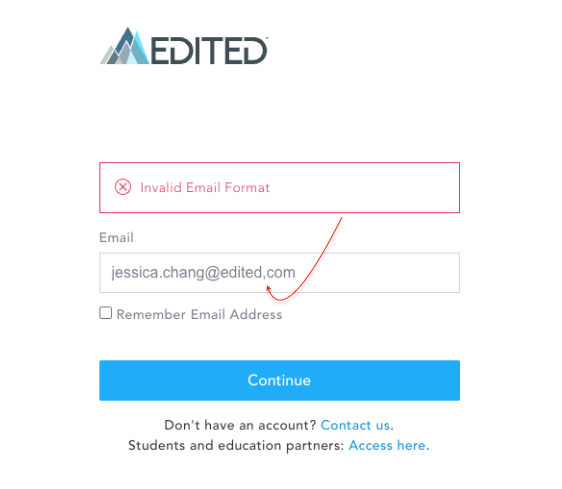
The system will allow you to continue even if the email address is incorrect or not associated with an account. However, it will not let you continue if you enter an invalid email address format. To ensure a valid email format, please check the following:
- No extra spaces before or after the email (a stray space from copy-pasting is a common culprit)
- No unquoted spaces, consecutive dots, or multiple "@" symbols outside of quotation marks.
- No abbreviations or usernames in place of the full email — it must be the complete address, including the domain (e.g. @school.edu, not just the part before the @)
I’m trying to log in but I’m receiving “Invalid Username or Password”:
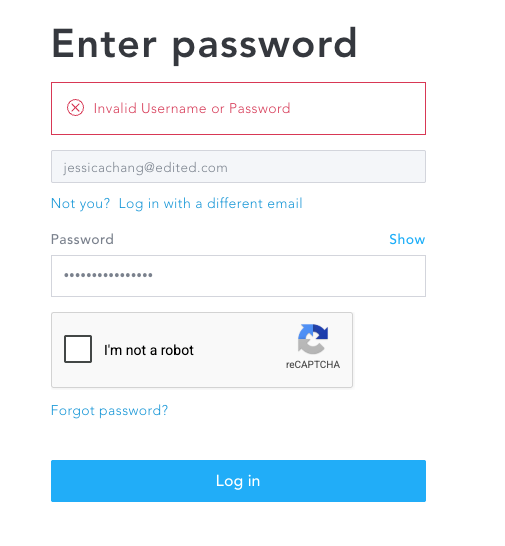
- This almost always relates to the username rather than password. Meaning there is not an account associated with that email address. You will need to click “Not you?” Log in with a different email” and troubleshoot the following:
- Ensure your username is typed correctly and matches your school email address.
- Double-check that you're entering your full student/education email address (not a personal Gmail, Yahoo, etc.)
- Ensure you are following the valid email address format from above.
I’m trying to log in but I’m receiving “Invalid Password”:
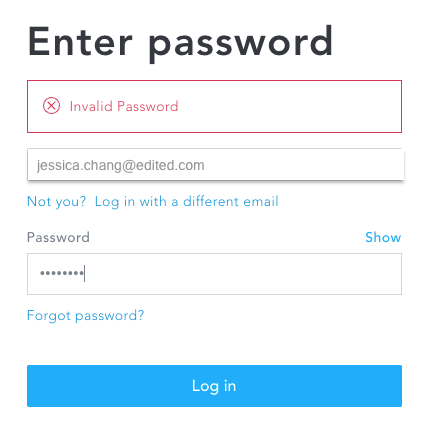
Your email address is correct but your password is not. Ensure you are spelling your password correctly and check for the most common culprits:
- Double-check:
- That CAPS-LOCK isn’t turned on
- No extra spaces
- Special characters are used where wanted
I’m trying to log into my account, but it’s telling me I "don’t have an active subscription":
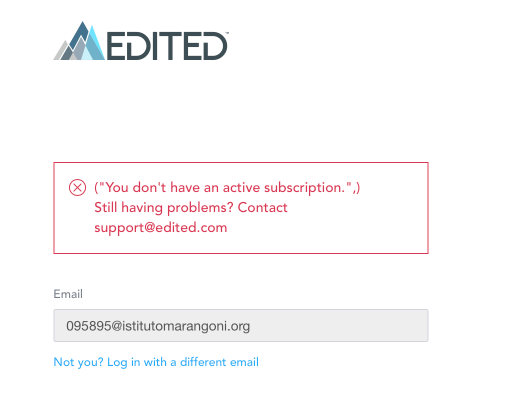
- Contact your school’s administration team or course professor to ensure that your school has renewed their education subscription with EDITED.
If you are still experiencing issues with your login, the sections below cover the most common sticking points.
Frequently Asked Questions:
How do I reset my password?
- Go to the login page.
- Enter your student email in the username field.
- Click Forgot password? below the login button.
- Enter the email address associated with your account when prompted.
- Check your inbox for a password reset email and follow the link inside to set a new password.
I entered my email, but I never got a reset link. What's wrong?:
This is almost always caused by one of the following:
1. The email doesn't match your account exactly. Double-check that you're entering:
- Your full student/education email address (not a personal Gmail, Yahoo, etc.)
- No extra spaces before or after the email (a stray space from copy-pasting is a common culprit)
- No abbreviations or usernames in place of the full email — it must be the complete address, including the domain (e.g. @school.edu, not just the part before the @)
Tip: Try typing the email manually instead of pasting it, since copied text can carry invisible spaces or formatting.
2. The email went to spam, junk, or promotions. Search your inbox for emails from:
support@edited.com.
The email will have a subject line related to your password reset. Check these folders specifically:
- Spam / Junk
- Promotions tab (if using Gmail)
- Any custom filters or rules that might auto-sort mail
If you find it there, mark it as "Not spam" and consider adding support@edited.com to your contacts to avoid this happening again.
3. The account doesn't exist under that email. If you've tried multiple times and nothing arrives (even in spam), it's possible the email on file is different from the one you're using. Please contact your school’s administration team or course professor to confirm which email address is associated with your account.
What does the password reset email look like?:
- Sender: support@edited.com
- Subject line: Look for a subject referencing "EDITED: New Password Request for your_name@school_domain.com"
- Contents: A link or button to set a new password, valid for a limited time
If you see an email from a different sender claiming to be a password reset, do not click any links — it may not be legitimate.
I clicked the reset link, but it says it's expired or invalid.
Reset links are time-sensitive and typically expire after 72-hours or after being used once. If this happens:
- Go back to the login page.
- Click Forgot password? again to request a new link.
- Use the new email as soon as possible after it arrives.
I reset my password, but I still can't log in.
- Make sure Caps Lock isn't on.
- Confirm you're entering the new password, not the old one.
- Double-check you're using the correct username/email combination — mixing up two accounts (e.g. a personal vs. school email) is a common issue.
- Clear your browser cache or try an incognito/private window in case an old session is cached.
I'm not receiving any emails at all — not even in spam.
- Confirm the email address on file is spelled correctly (a single typo means the email goes nowhere).
- Check with your school/organization's IT team — some education domains filter external emails aggressively and may need to allow emails from support@edited.com.
- Wait a few minutes; delivery can occasionally be delayed.
- If it still doesn't arrive after 15–20 minutes, contact your school’s administration team or course professor directly to ensure you are enrolled with EDITED.